
Connect to your Mailgun account to send submission emails.
In the past, if you didn't want to use out email to send submission emails, you could only change the sending email address by using custom SMTP in the form.
Now, our app can send submission emails using your own Mailgun account. This way you can use your domain name to send emails to enhance your brand trust.
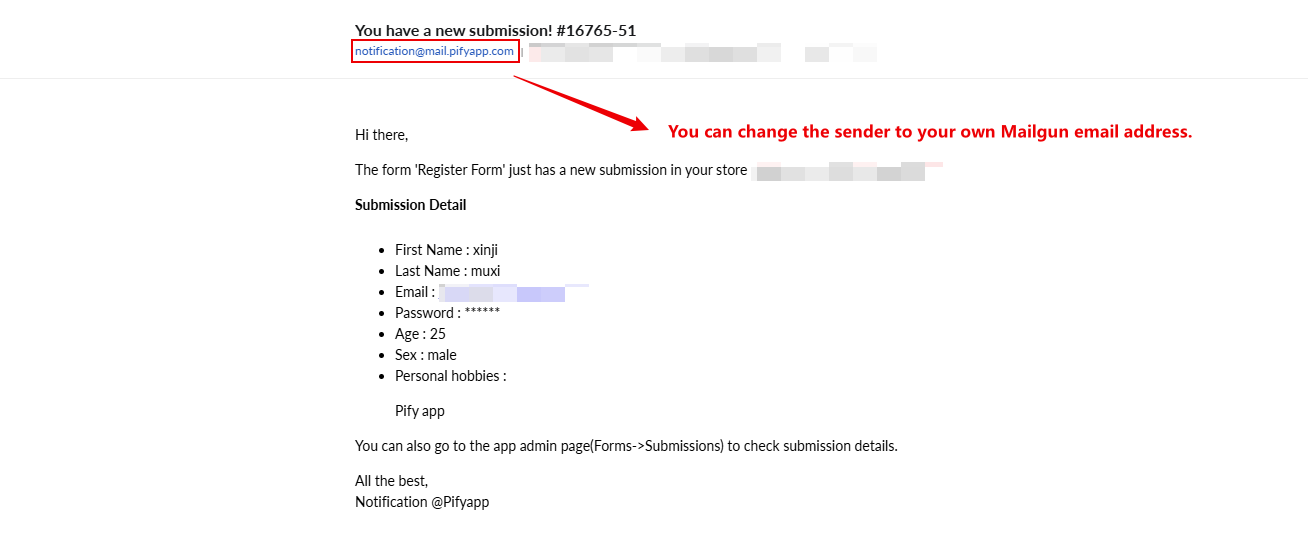
You can follow these steps to change the sender of the submission email to your Mailgun email address.
Step1: Obtain Mailgun email and API Key.
Situation1: You do not have a Mailgun email.
1. Register and log in to Mailgun.
2. After entering Mailgun, select "Send" > expand Sending > choose "Domains".
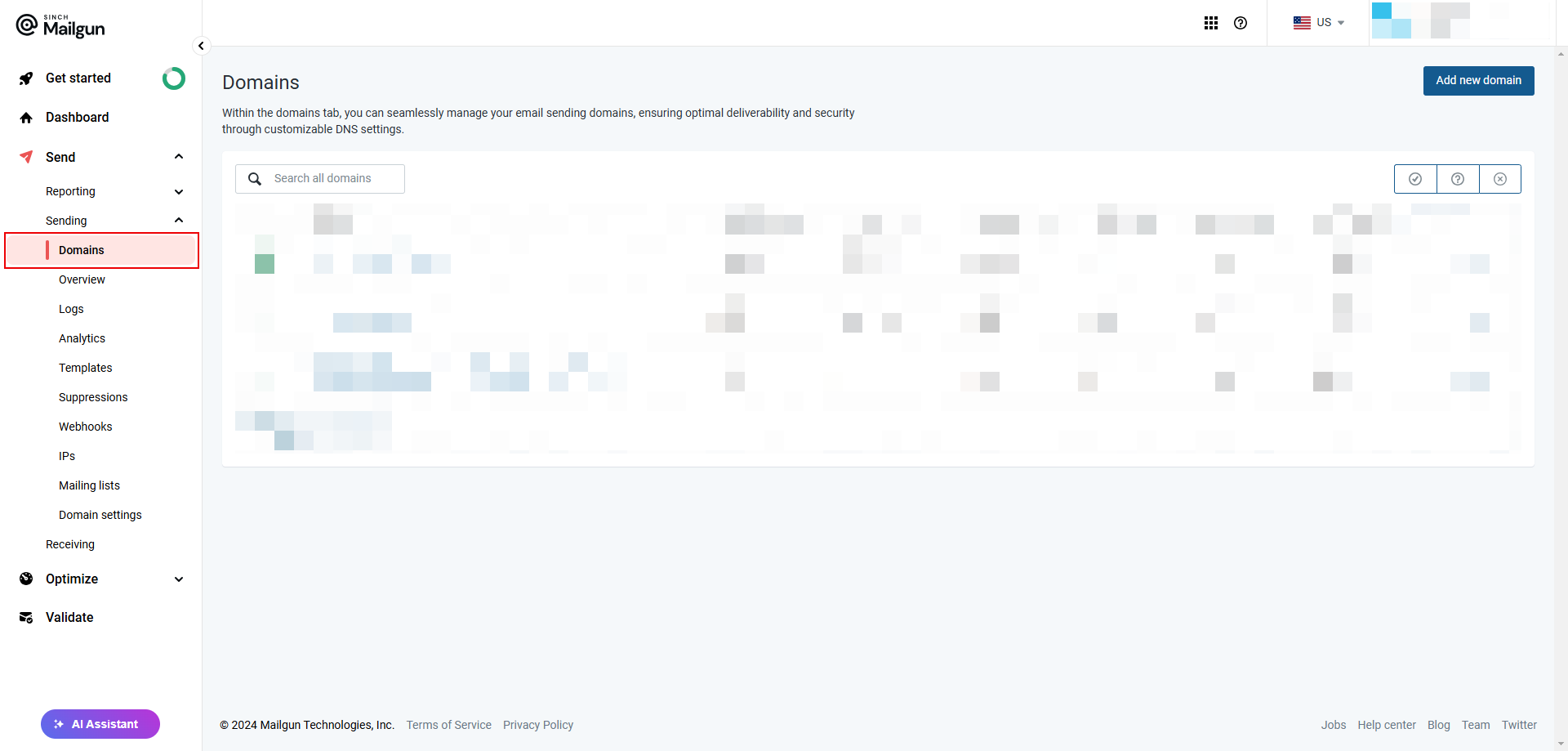
3. Click the Add new domain button to add a domain, and then follow the Mailgun documentation to add DNS records to your hosting provider.
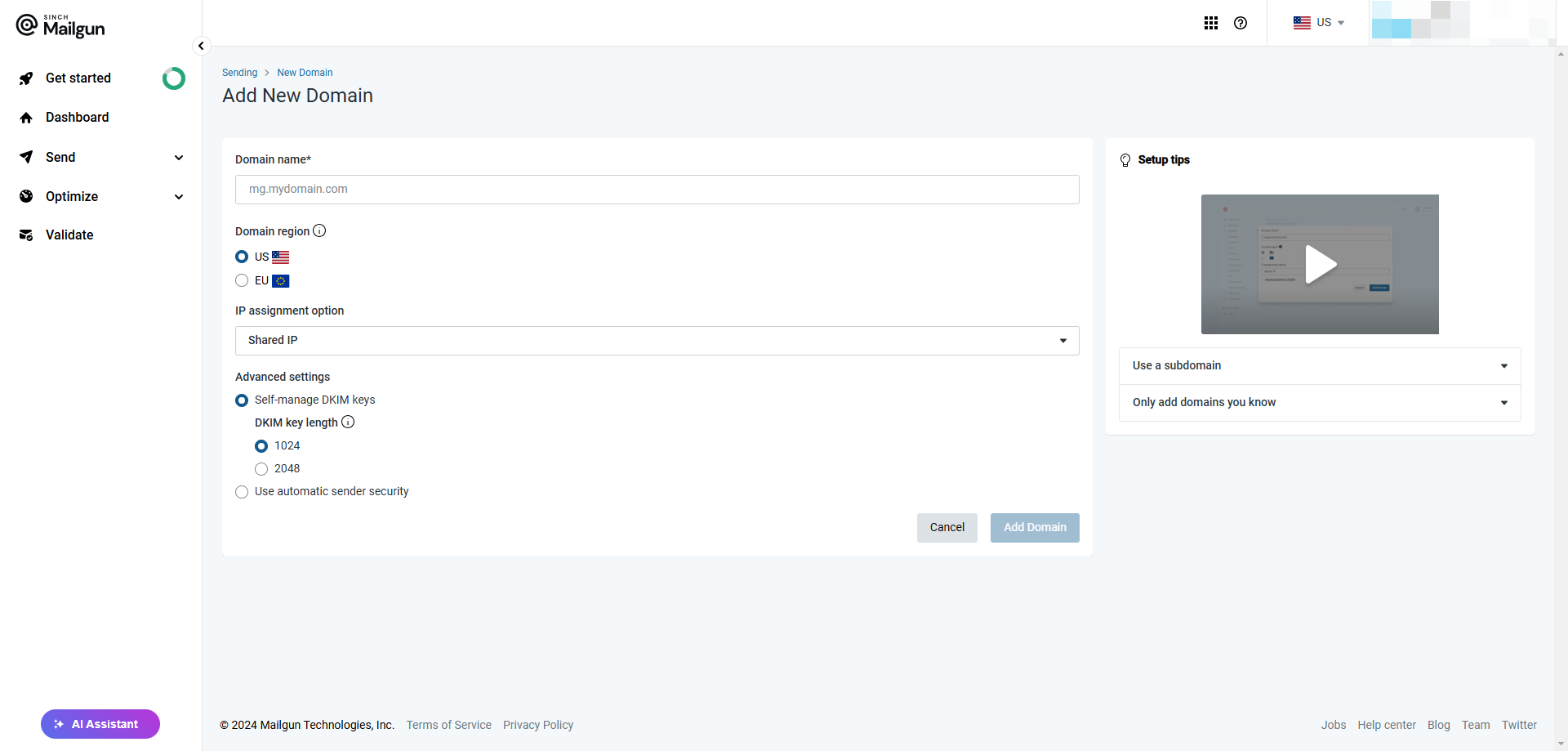
4. When your domain name application is approved. Please select Send > expand "Sending" > choose "Domain settings".
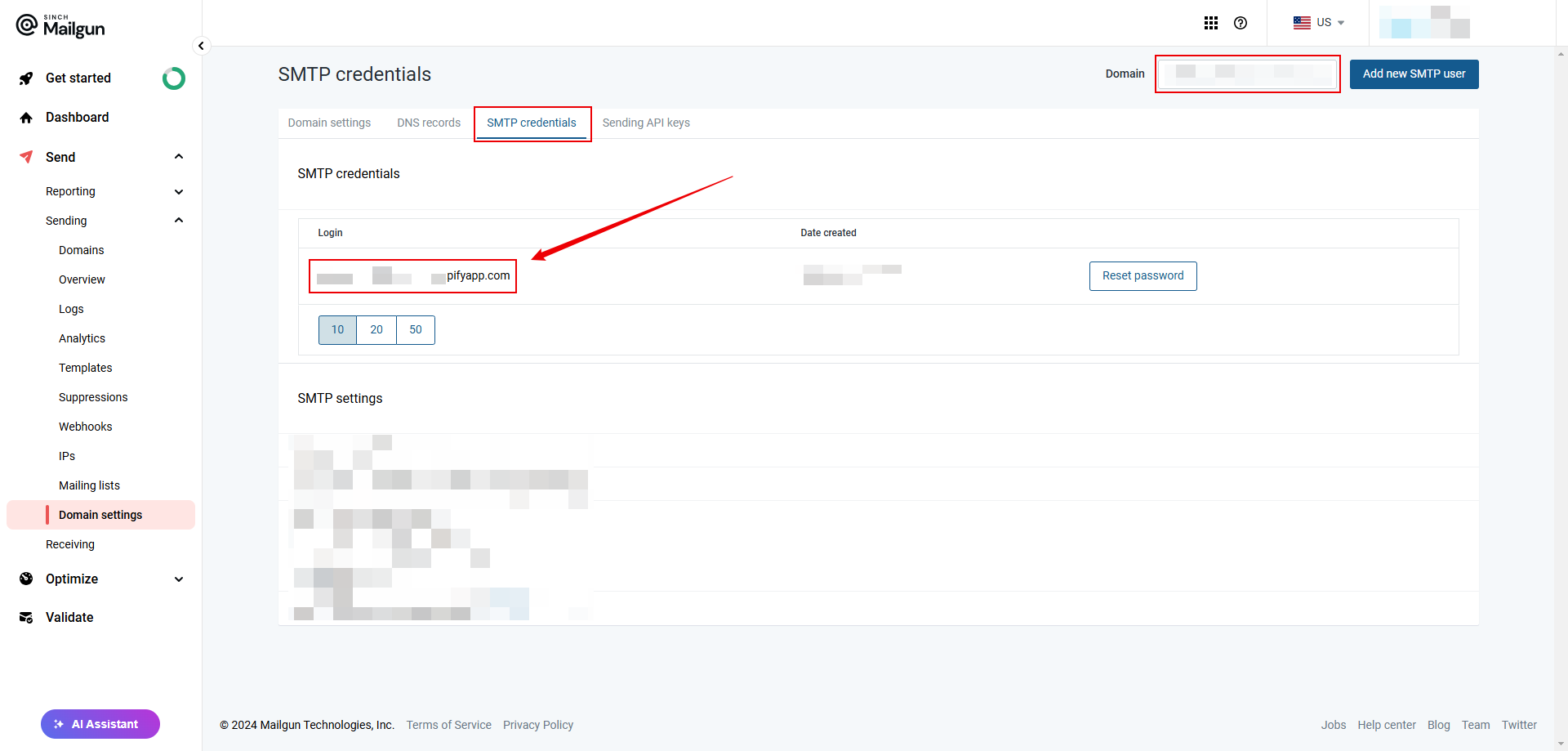
5. Select the "SMTP credentials", and on the right side, you can choose the domain you need. Obtain the Mailgun email address below the Login section.
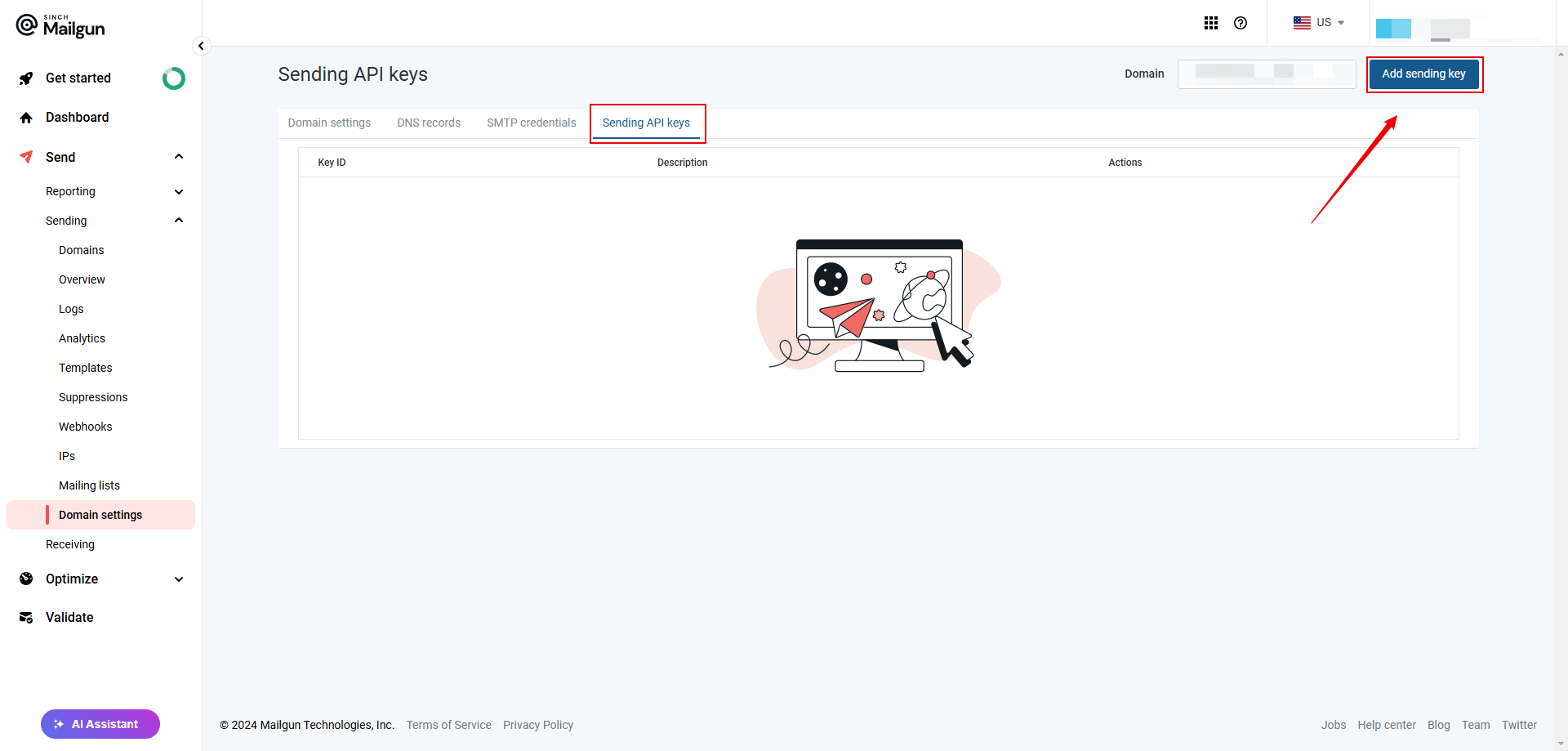
6. Choose "Sending API keys", then click the "Add Sending Key" button on the right to create an API Key. Record the acquired "API Key".
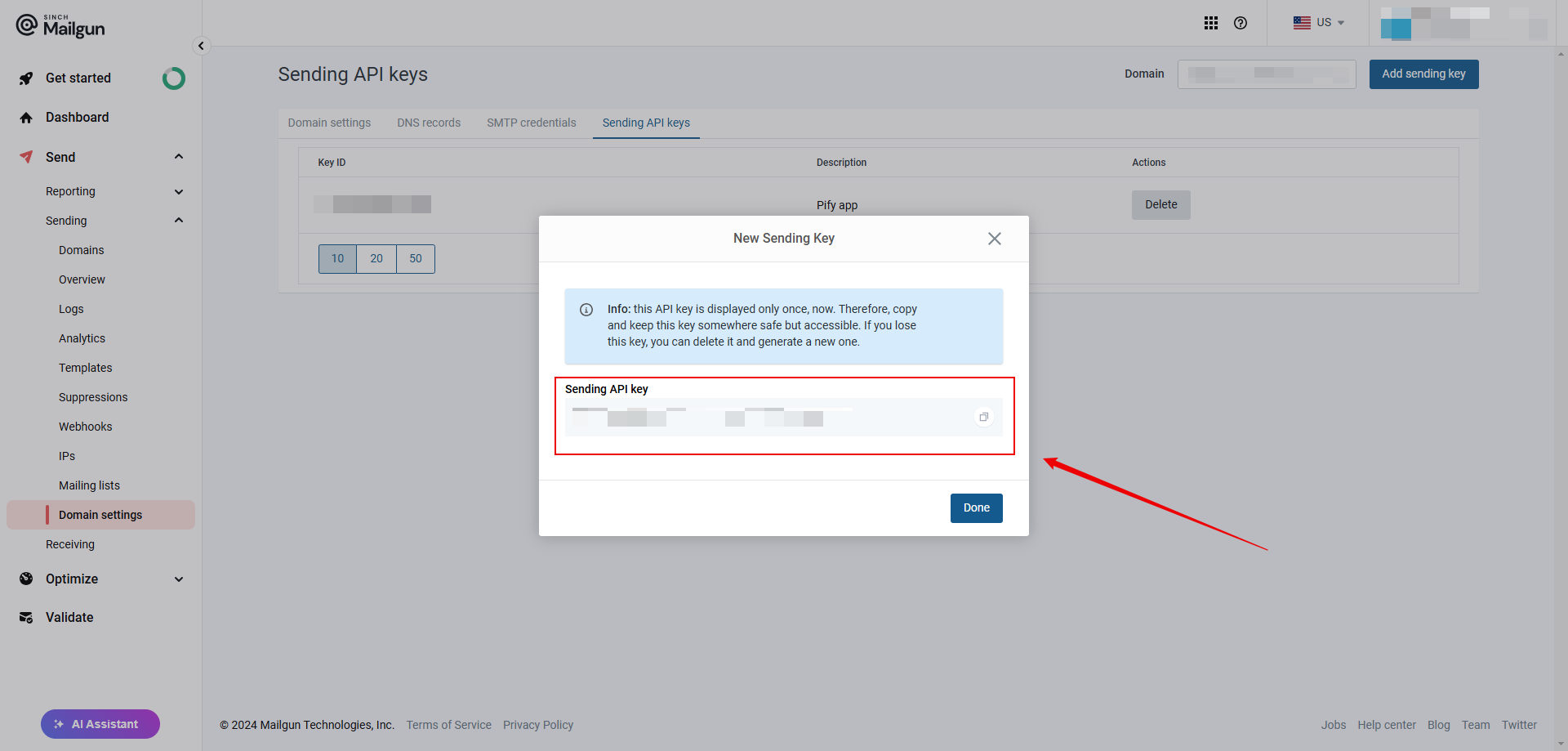
Situation2: You have a Mailgun email.
1. Select "Send" > expand Sending > choose "Domain settings".
2. Select the SMTP credentials, and on the right side, you can choose the domain you need. Obtain the Mailgun email address below the Login section.
3. Choose "Sending API keys", then click the "Add Sending Key" button on the right to create an API Key. Record the acquired "API Key".
Step2: Change the email for sending submission emails in the app to your Mailgun ema address.
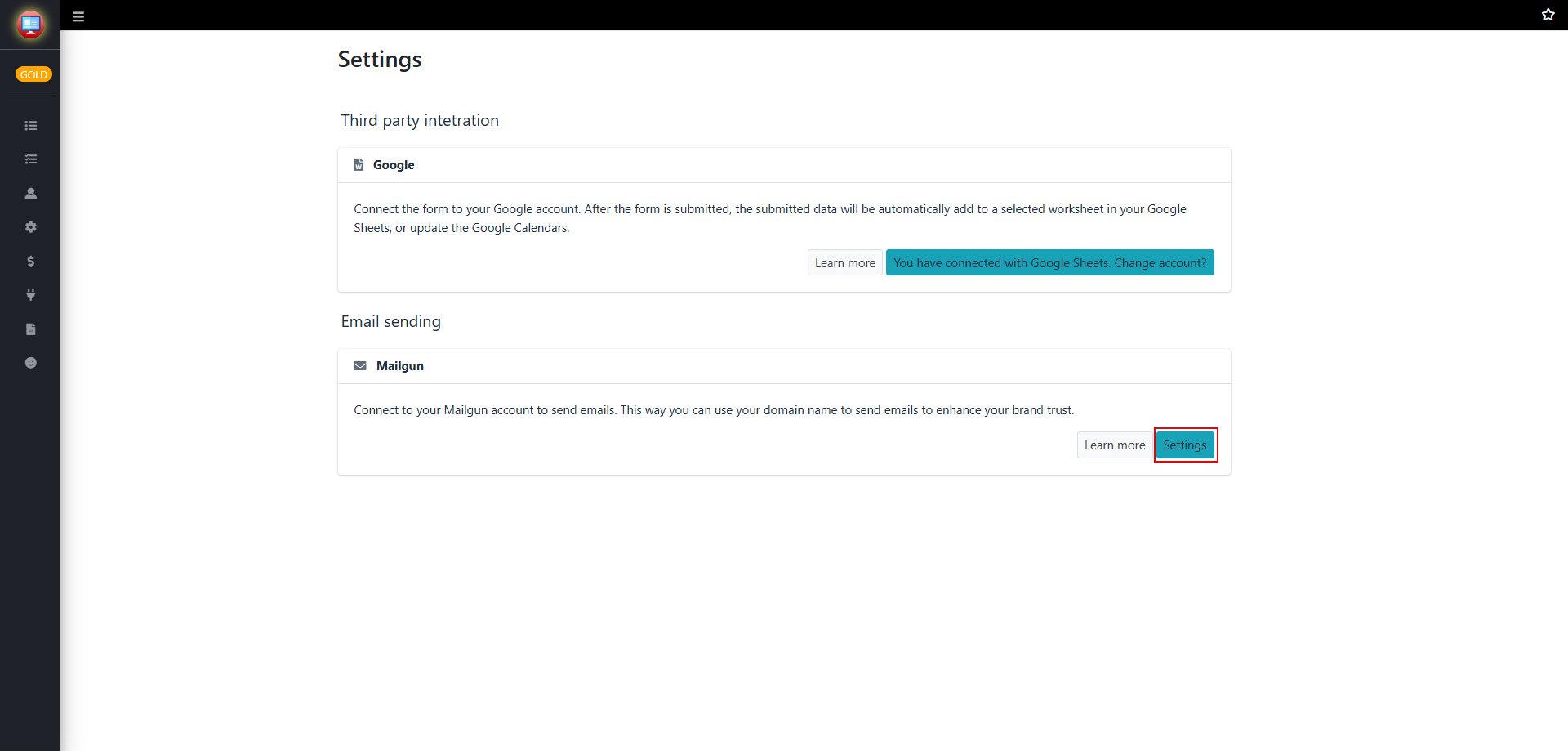
1. Open the app and select "Settings".
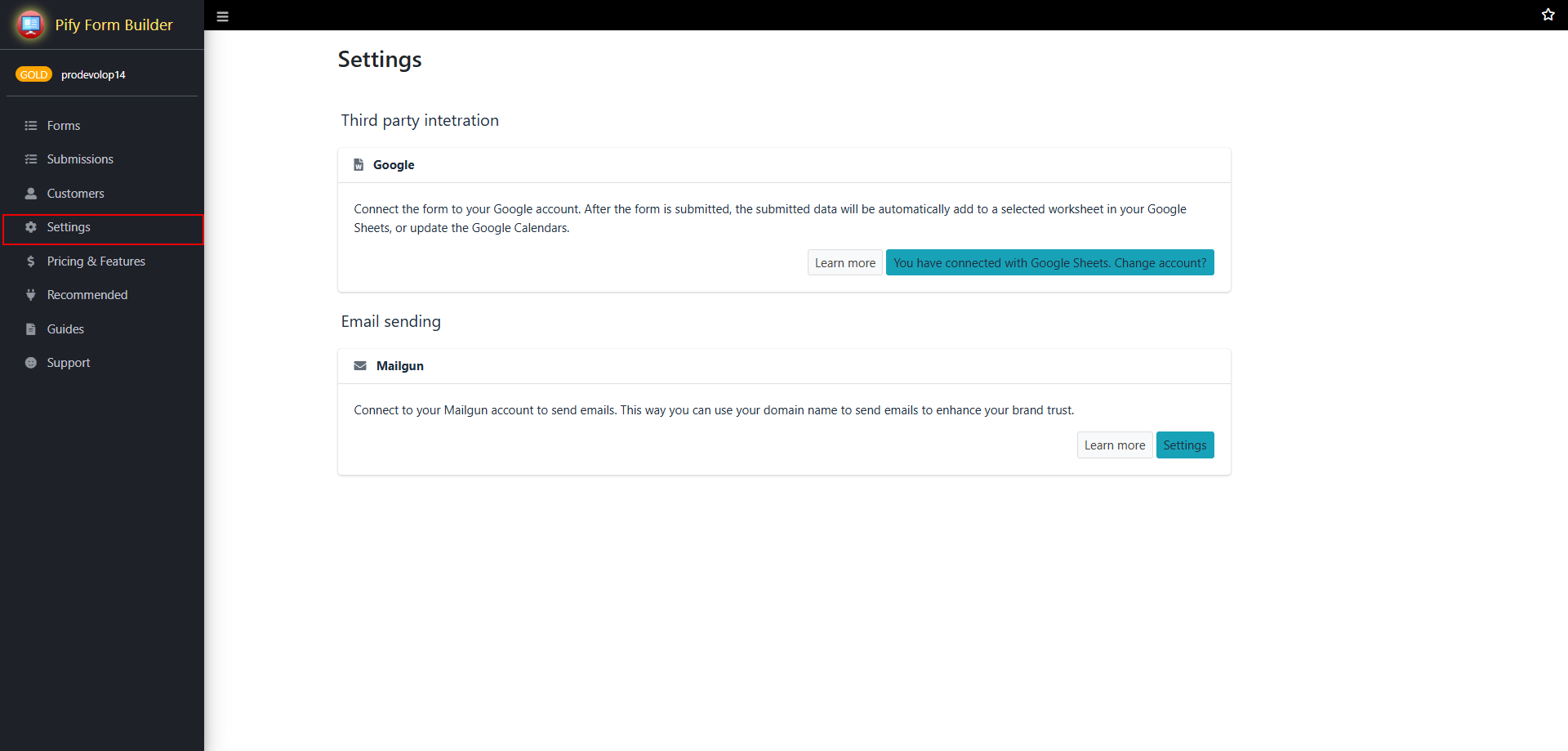
2. Find "Email sending" and click the "Settings" button in the bottom right corner.
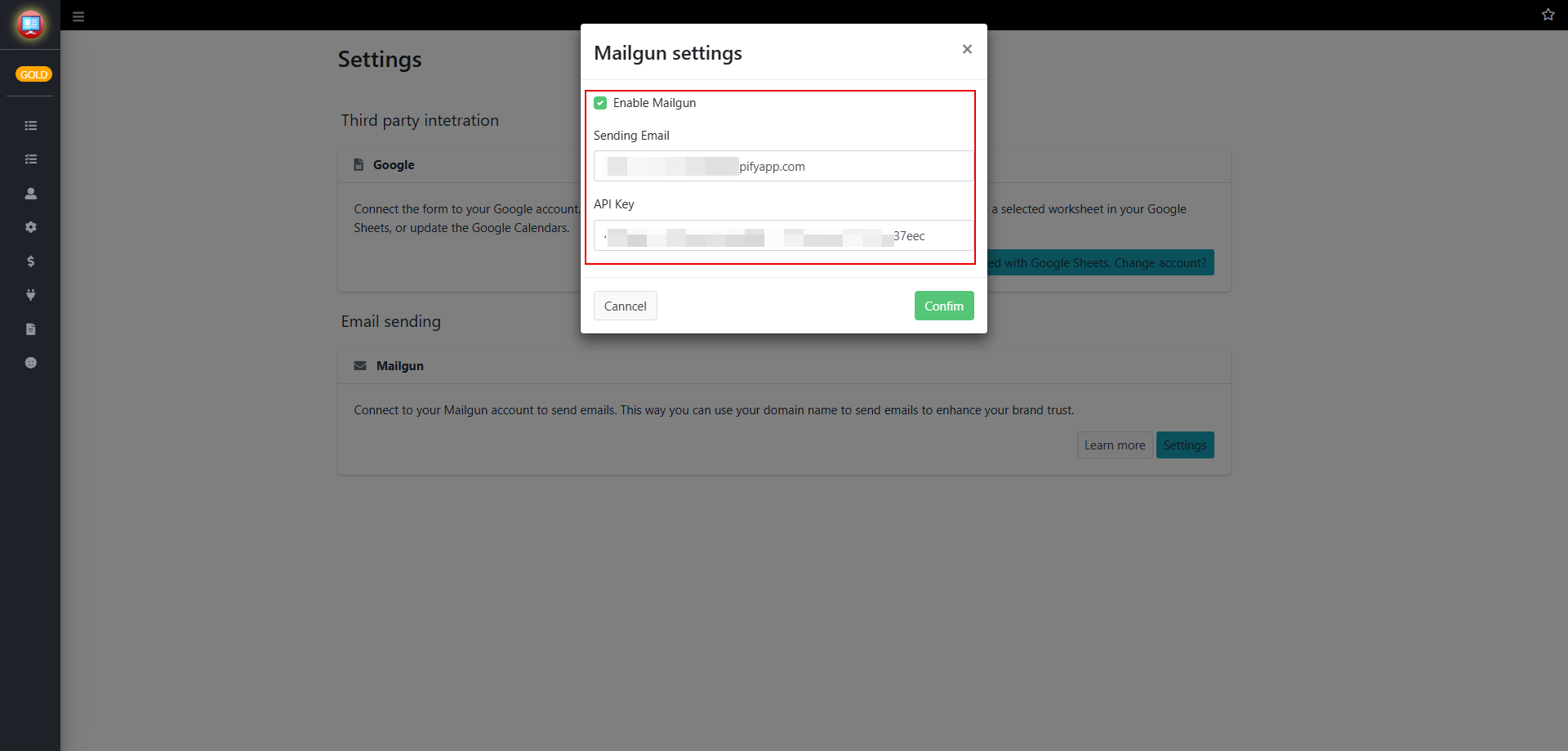
3. In the pop-up Mailgun settings information box, check the box for Enable Mailgun, and then enter the Mailgun email you obtained earlier in the input field below Sending Email. In the input field below API Key, enter the API Key you obtained previously. Finally, click on "Confirm".
Step3: Submit the Form and Verify.
After the setup is complete, you can submit a form to check whether the sender of the received submission email is your Mailgun mailbox.
If any problem, feel free to contact us for support directly.