
Add a Cart Attribute.
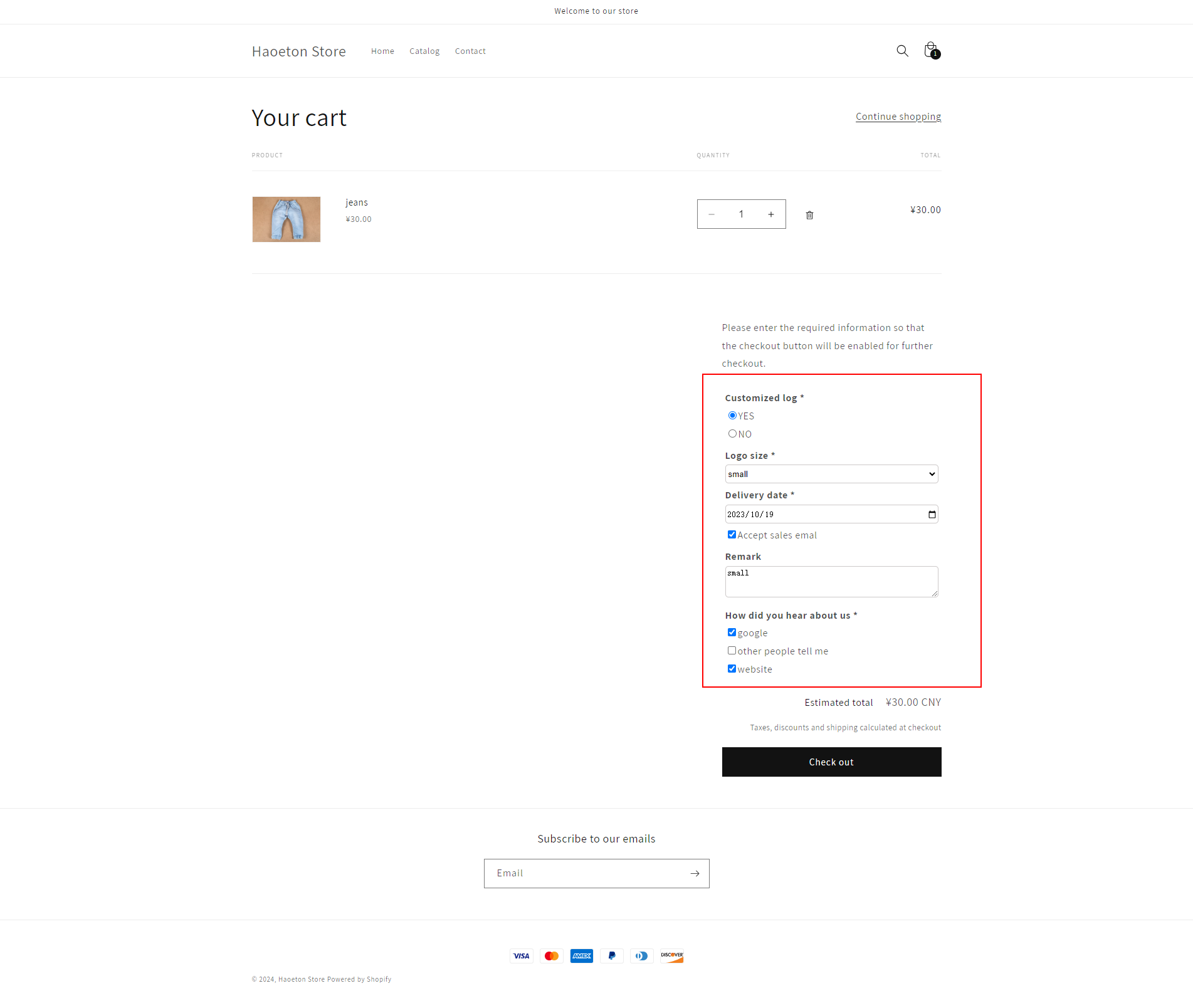
You can obtain necessary data directly from your customers in a simple way. place fields on the shopping cart page to know the delivery date, logo text, etc. And you can see them on the store admin page.
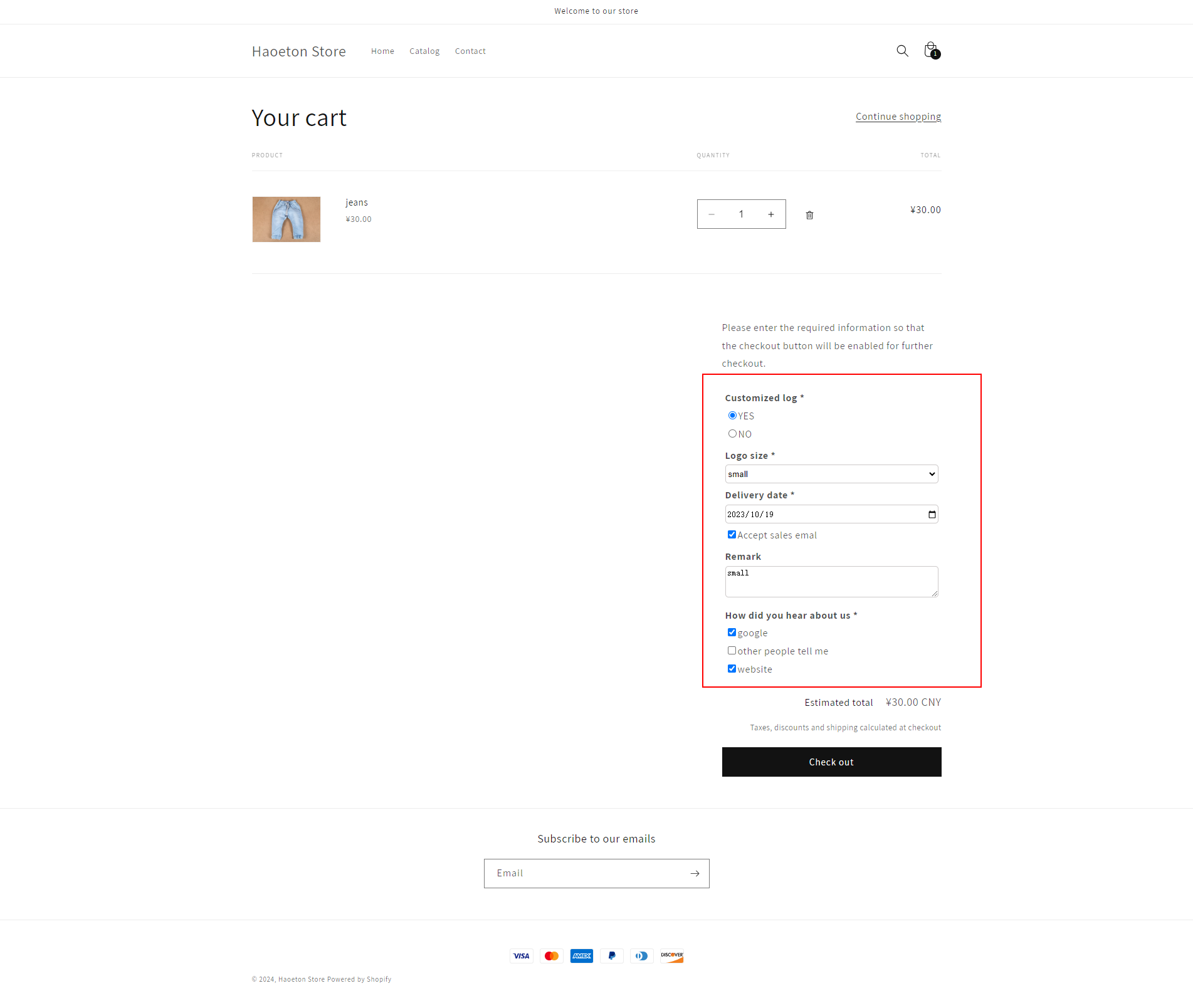
Please follow the steps below to add attributes:
Step1: Enable Theme extension.
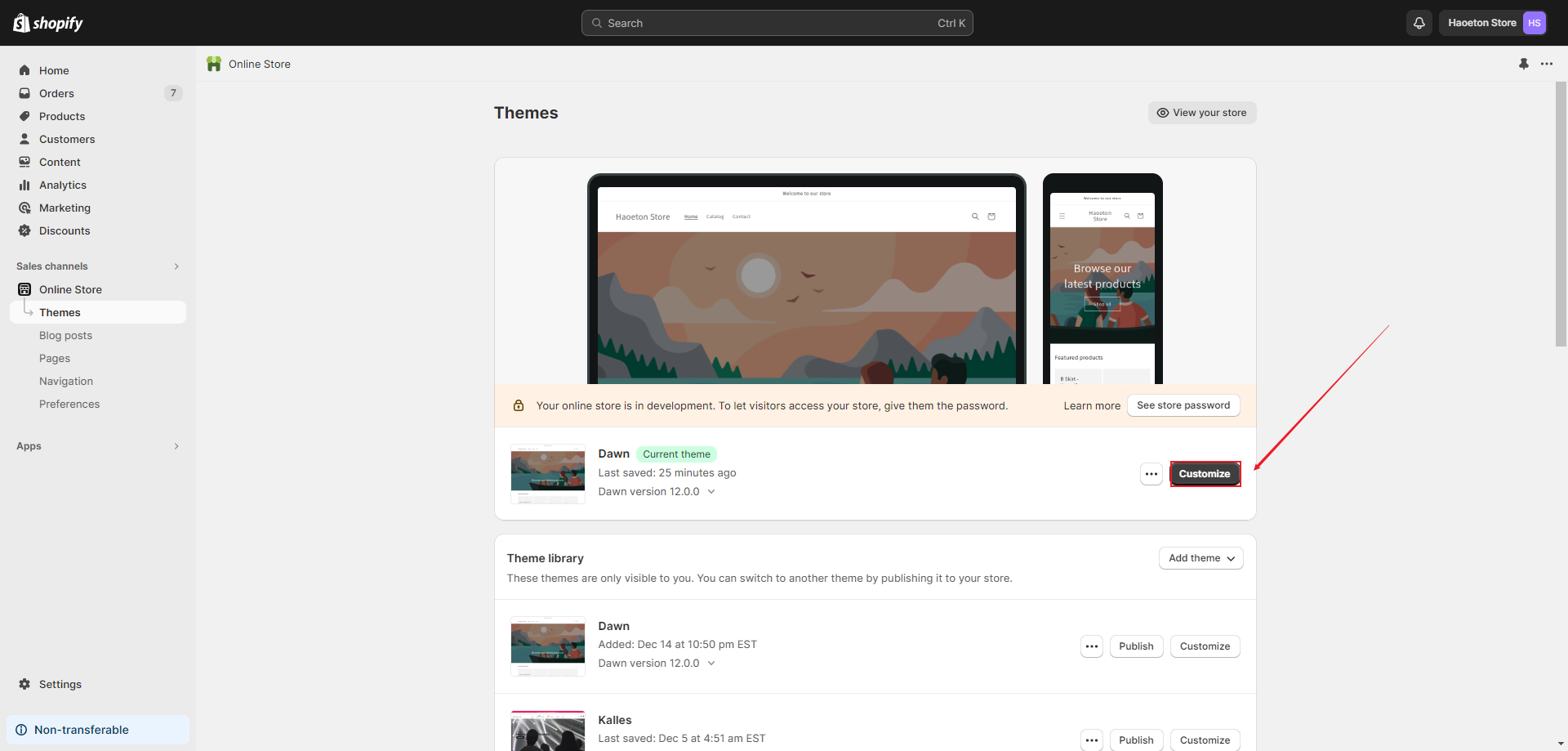
1.Enter your store's customization page.
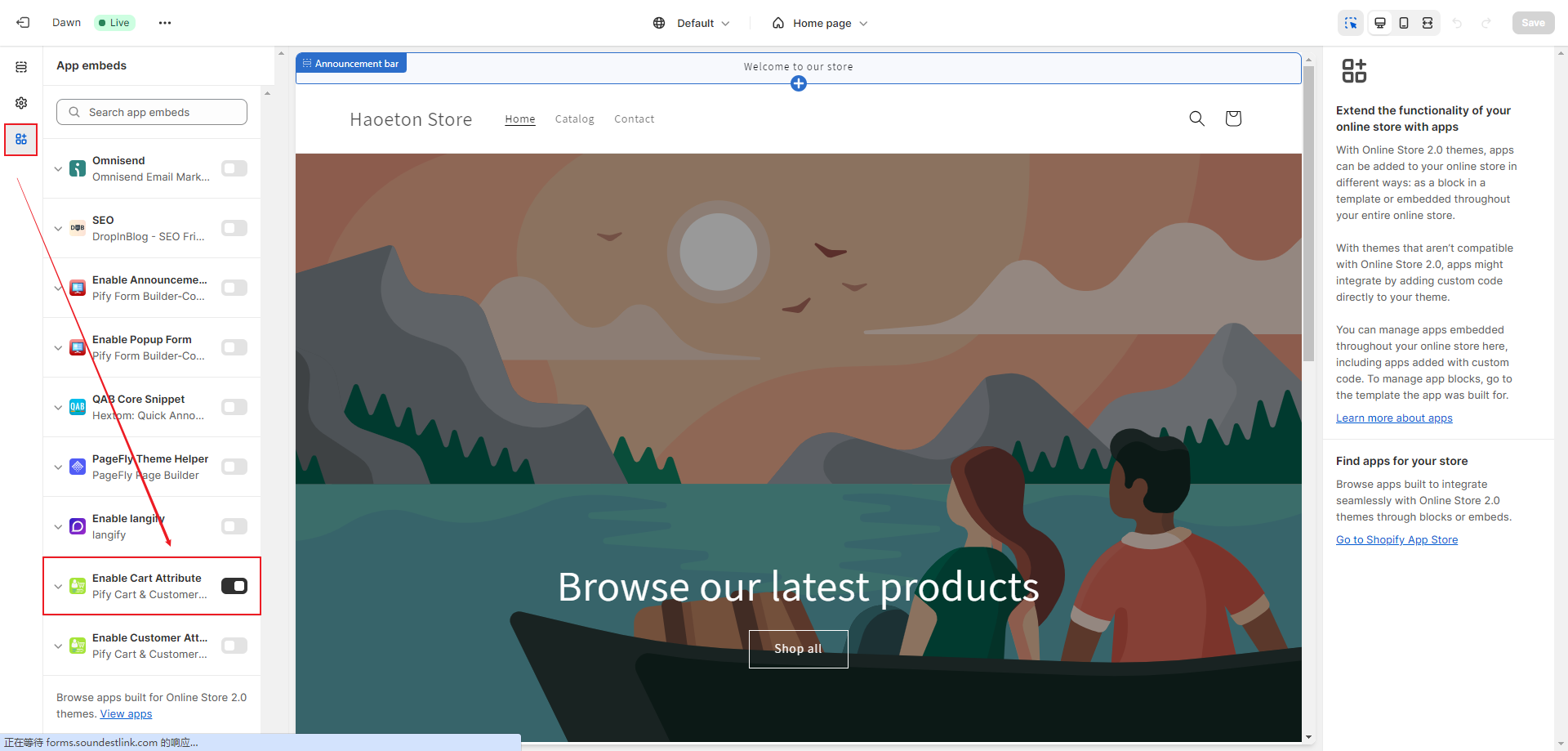
2. Click on App embeds, Enable Cart Attribute, and then Save.
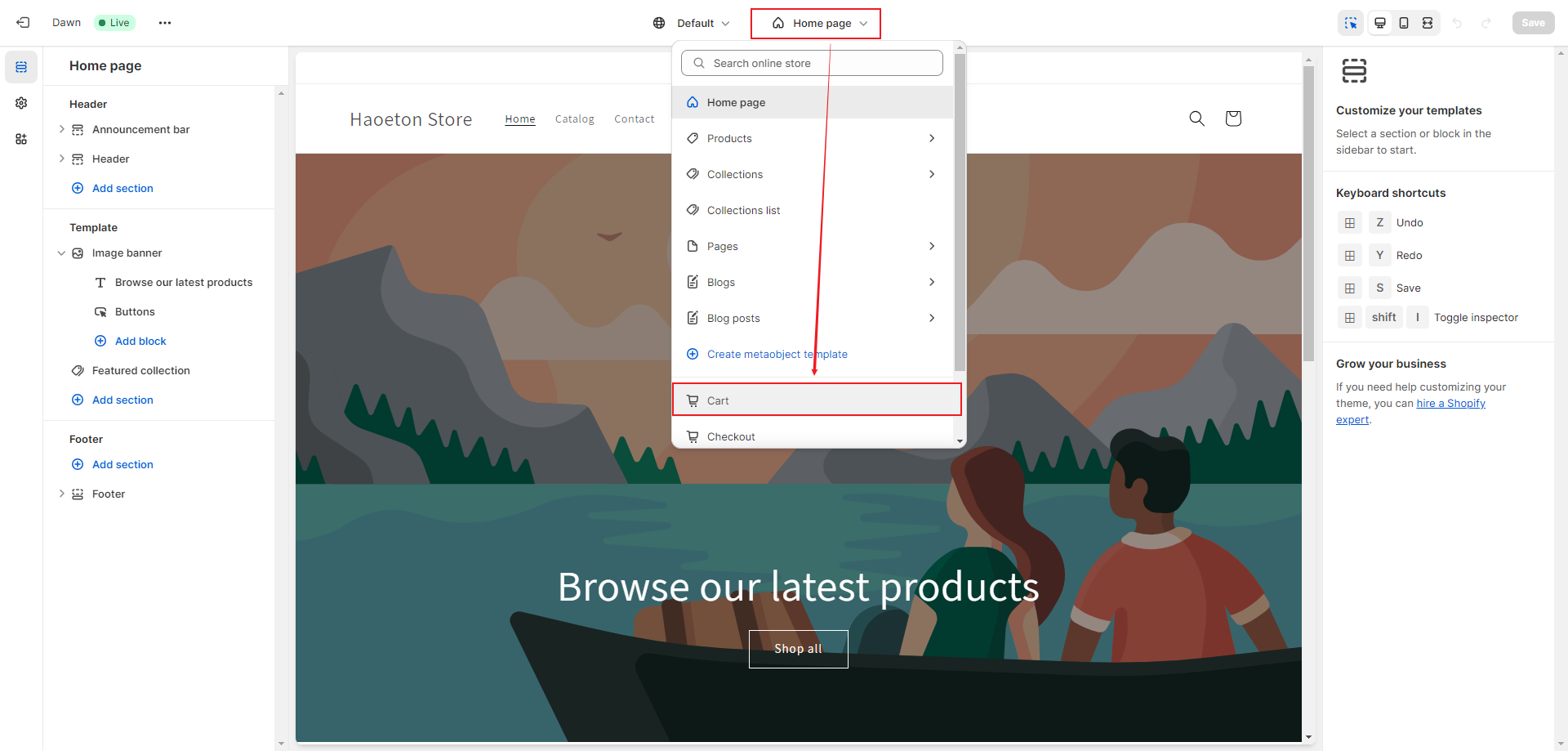
3. Switch the page template to Cart.
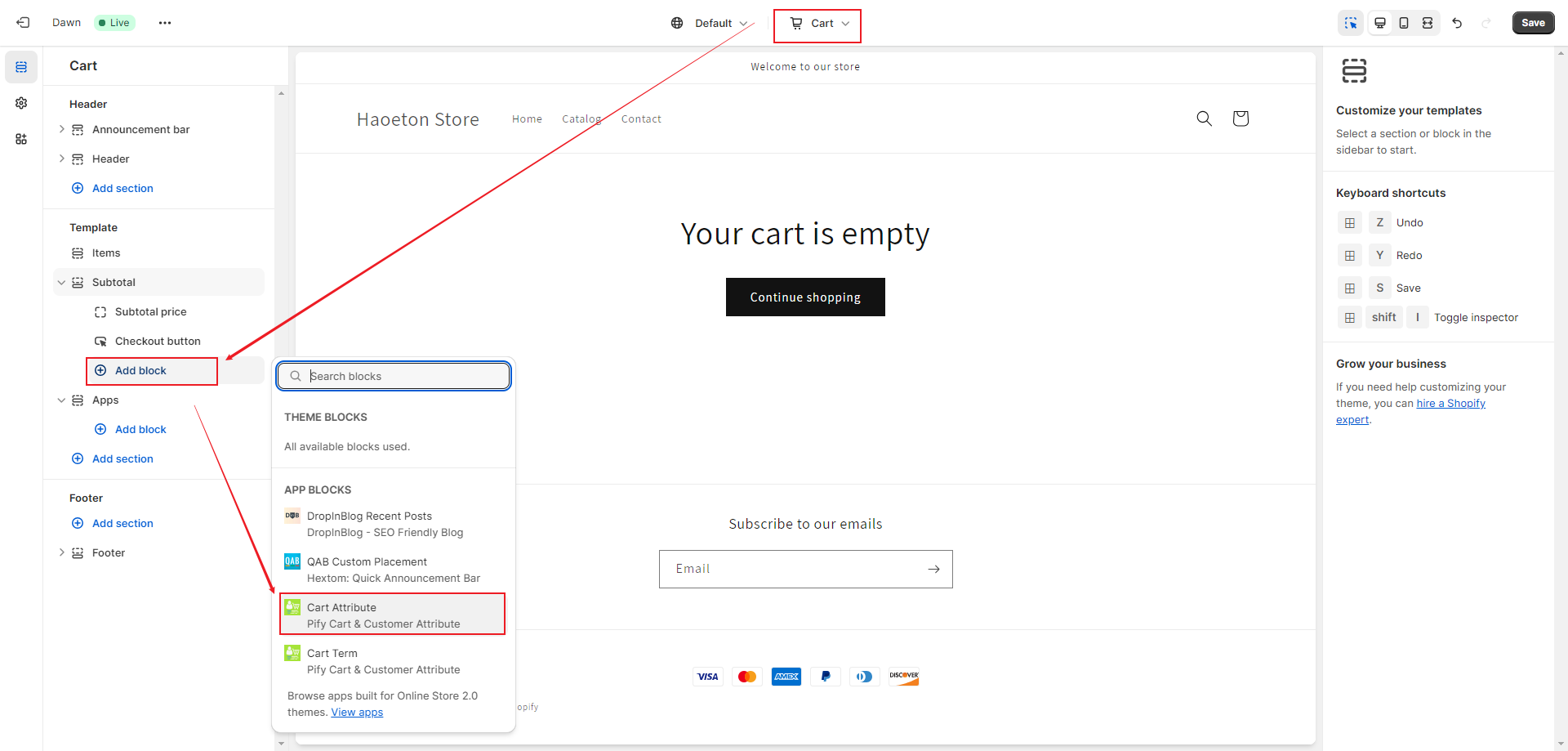
4.Click on "Add block", add "Cart Attribute", and then "Save".
Cart Attribute represents the position of the added shopping cart attribute. If it does not meet the position you need or you didn't find the app blocks on your cart template of your theme, please contact us for assistance.
Step2: Create cart attribute.
1. In the app's navigation bar, select "Cart attributes". Then click the "Add new" button to add a cart attribute.


2. Add your options in the Options section, for example, if you added a Radio Select, you can add the options you need here.

3. Set cart conditions which decide how the attribute available, it is optional.

4. You can click the "Preview" button to go to the shopping cart page and view how the cart attributes are displayed.
Cart attributes will only appear in the shopping cart when their status is set to "Enabled". If the status of a cart attribute is "Disabled", it will not be shown in the shopping cart.
You can click the dropdown button to the right of the Edit button to expand more options and change the status of the cart attributes.

5. When there are products in the shopping cart, the shopping cart attributes will be displayed on the shopping cart page.
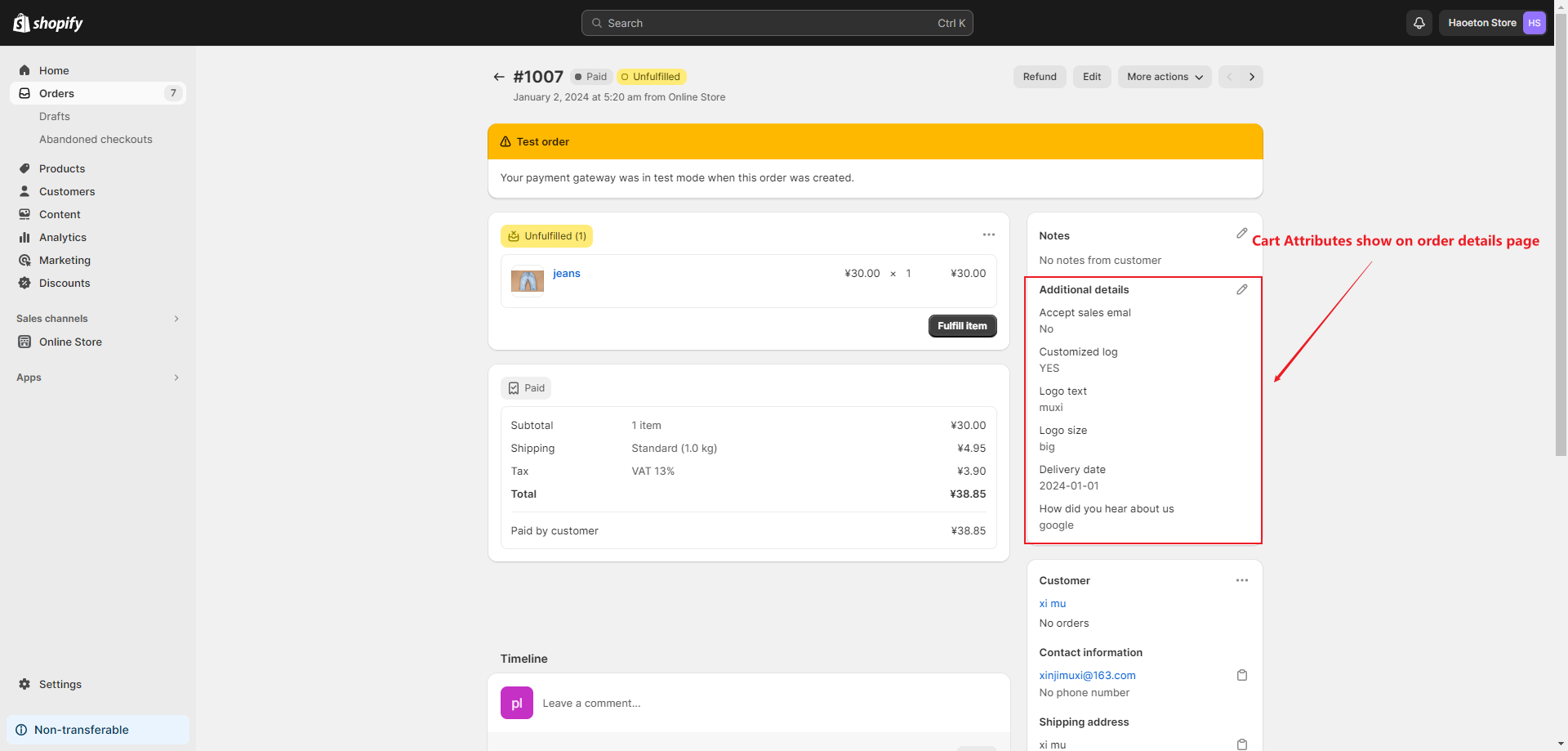
Cart attributes show on the order detail page.
If any problem, feel free to contact us for support directly.